DesignBox will place at your disposal many tools to speed up your work. Do you feel frustrated, annoyed? Is success your goal? Then you want to use DesignBox to change your image effects, batch resize, rotate, mix a watermark, convert format, make GIF animations, create iOS icons, Generate QR code or draw your shapes as you please.
DesignBox | Best Assistant for Graphic & Picture Design | MAC & Windows
DesignBox – Image Effects
Easily adapt your pictures to the best popular styles, such as Fashion, LOMO, Digital Studio Effects, etc.
Do you enjoy designing stylish and elegant men or beautiful girls? You may be a photographer, so you owe it to yourself to try this software tool.
With a single click you’ll have at your disposal hundreds of picture styles, dozens of filters, be able adjust the lightness, contrast, saturation, sharpness, HUE and RGB colors of your work!
Give it a try, make your pictures a work of art with all our amazing effects. Read the full review about DesignBox from fixthephoto.com
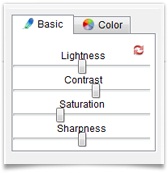
Basic Image Adjust
Make use of Lightness, Contrast, Saturation and Sharpness effects to compose and arrange your pictures just the way you want them.
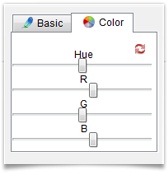
Hue and Color Adjust
Use the slide bar to adjust the HUE and the RGB color of your pictures. Build your images to give them a warm or cold effect, and adjust their colors if needed.
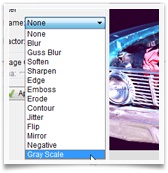
Filters
You can apply and use dozens of filters, including Blur, Soften, Gaussian Blur, Sharpen, Edge, Emboss, Erode, Contour, Jitter, Flip, Mirror, Negative and Gray Scale.
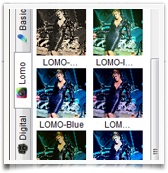
Quick Style
Pick and choose from hundreds of picture style templates. Additionally, you have access to basic effects, lomo and fashion style, and other digital studio effects. You’ll be amazed at your options!
DesignBox – Painter
With the painter tools, easily and freely draw your cartoon shapes and designs.
To draw shapes, just use pencil, brush, or spray freely. The line, rectangle and circle tools will help you create regular shapes, and with the crop, eraser, color picker, paint pail you will be able to make needed changes easily.
What about if you want to use Text? No problem, go ahead and use the Text button to change the font, make it bold, italic or both.
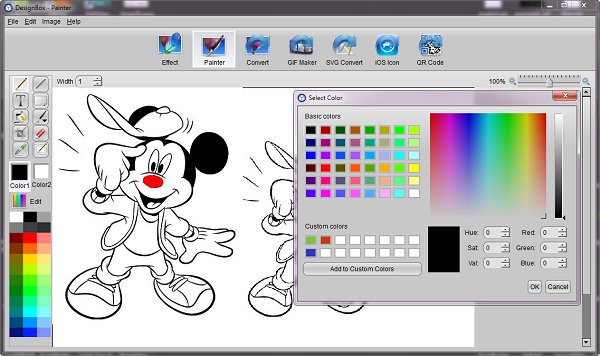
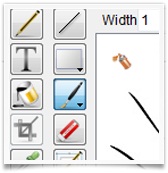
Painter Tool Box
So that your designs follow your goals, the Tool Box offers you many options, including Pencil, Line, Text, Rectangle, Circle, Paint Pail, Brush, Spray, Crop, Eraser, Color Picker, and Select.
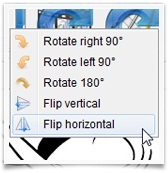
Rotate and Flip
You can rotate your images 90°CW, 90°CCW, or 180° and then flip your images vertically or horizontally.
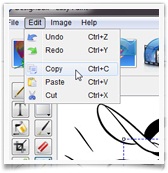
Copy Cut Selected Area
Select any area on the canvas, and then copy or cut it. Paste any images held in your window’s clipboard.
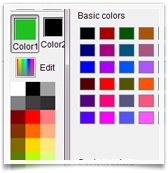
Quick Color Settings
Foreground and background colors are easily set, or if you need to, select the color bar or click the Edit button to choose additional colors from the color library.
DesignBox – Image Convert
Using the batch mode, easily adjust the size of your images, rotate them, add a watermark, or rename and export them.
Importantly, to batch convert all your images with a single click, you can batch convert them by selecting the multiple or all options.
Your images can be exported in several formats: JPG, PNG, BMP, TIF, TIFF, TGA, XPM, XBM, and PPM.
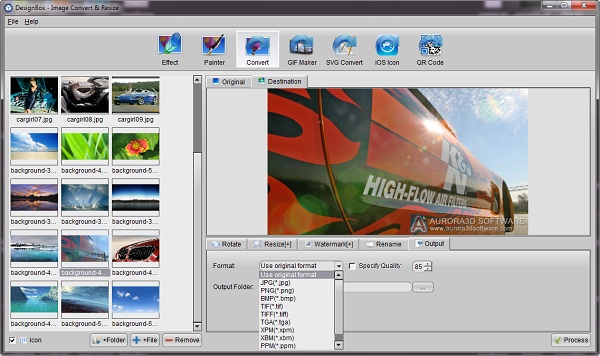
Batch Convert
Choose several pictures or add a folder to rotate them, change their size, add watermarks, or rename and convert them to many image formats.
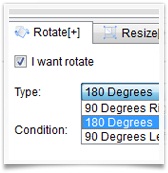
Rotate
Rotate your images 180° 90°CW and 90°CCW, and then choose to rotate them vertically or horizontally.
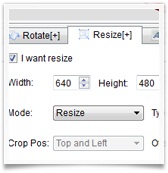
Resize
Resize and crop are at your disposal. Aspect ratio can be maintained; you can change your image size, or crop an image from any area on your picture.
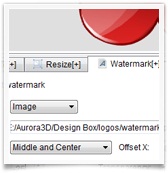
Watermark
Select you text or image to watermark. Set the font and color of the text, or select an image to mix it. Watermark position, rotation angle and transparency can also be set.
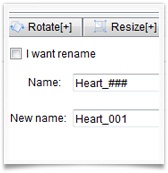
Rename
Use this format: “newname####” and set the start number. Use the batch mode to change file names in any sequence.
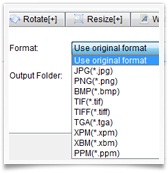
Convert to many Formats
Export your image in the original format or select JPG, PNG, BMP, TIF, TIFF, TGA, XPM, XBM, or PPM. Set the quality and save to your location.
DesignBox – GIF Maker
Easily create GIF animations with any set of pictures.
Add your image sequence in a list, set the GIF width, height, image delay and then export it.
The ability to create GIF animations with or without background is very satisfying and rewarding.
GIF Maker allows you to remove or add background color.
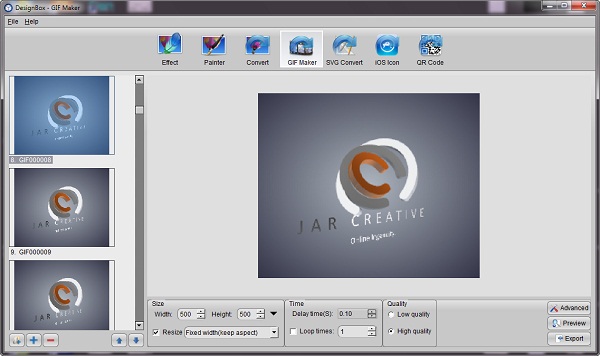
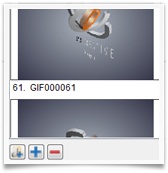
Create Image List
Add a folder or image sequence to create your images’ list. Use any image format to create GIF animations.
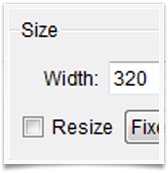
GIF Size
Set the GIF size, or resize your images to keep the aspect ratio or change to a fixed width and height.
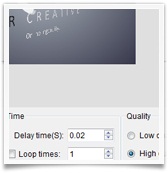
Times and Quality
Set the 1 picture delay time from 0.01s, use the loop function, select the low or high GIF quality, and then preview it.
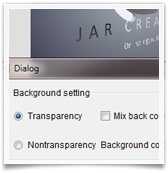
Advanced Background Settings
Export your GIF with or without transparent background. Remove or mix the background color.
DesignBox – QRCode Generator
Quickly generate QR codes with Text, URL, Phone number, Email, SMS, Contact, GEO, WIFI, Event, etc.
Convert your business card, label, or design watermark to QR code. Send your QR code to your friends through SMS, WIFI, GEO, or URL.
Using your Android or iPhone, scan and read the information contained in QR codes. Export your images in PNG, JPG, BMP, SVG, TIFF, etc., formats.
It’s fun and efficient!
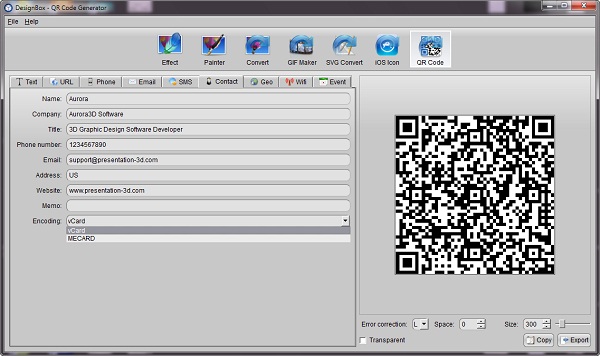
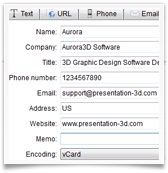
All Kinds of Information
Generate QR code with Text, URL, Phone number, Email, SMS, Contact, GEO, WIFI, and Event.
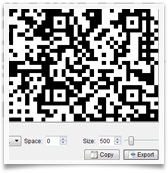
Adjust code size and Export
Receive error corrections, set space, size, and transparency. Copy and paste to other software; export your images to PNG, JPG, BMP, SVG, TIFF, etc.
DesignBox – SVG View & Convert
Efficient SVG viewer and batch convert tool.
SVG image is a major vector format for the next generation of websites, and it’s the preferred format for HTML5.
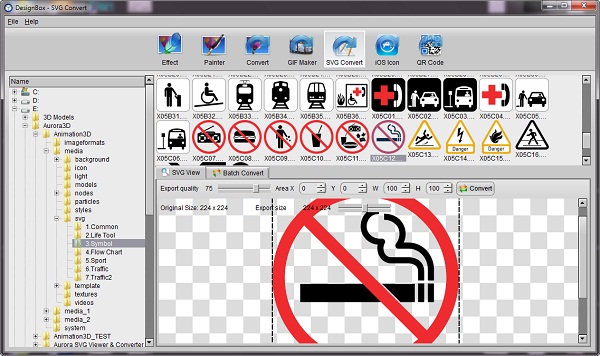
Practical SVG View and Convert Software. Easily select folders, or use thumbnail display mode.
Quickly preview SVG pictures or convert them; supports SVG and SVGZ.
Select any area from the SVG, then export with the same quality and size, and batch convert SVG to tiff, png, jpg, bmp, gif, tga, xpm, ppm, xbm, and pdf.
SVG Convert
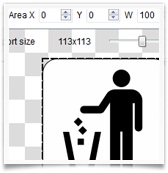
Select the SVG area as you wish and set the export size and quality.
SVG & SVGZ View
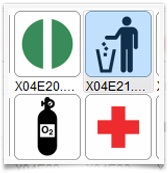
Easy folder selection and thumbnail display mode. Quick preview of SVG pictures or convert them; support for SVG and SVGZ.
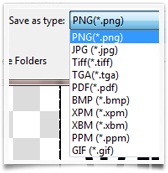
Convert to Many Formats
Convert SVG to PNG, TIFF, TGA, PDF, BMP, XPM, XBM, PPM, and GIF.
Batch Convert
Make a SVG list, then set your export format, quality, and path to save. In one single sweep convert a large number of SVG.
DesignBox – iOS ICON Maker
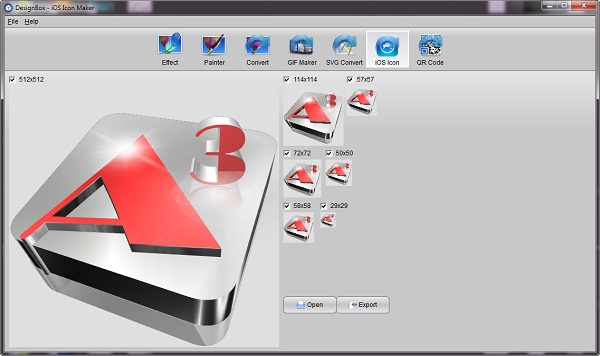
Easily generate iOS icons and include different size pictures or a iTunesArtwork file.
To create an icon for your app, you need to have an image. iOS icons, however, need multiple files and each file has a different name.
Using this tool, all you need is 1 click and you’re done! It’s the best tool to generate iOS icons.
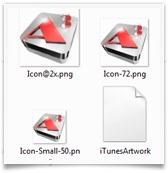
Get all files for iOS
After you’re done creating an icon for your App, in a single sweep you’ll be able to generate all needed files for iTunes App Store and iOS.
1 Time! 1 Click!
You can create an iTunesArtwork file, and generate all the files, each with its unique name, for the App Store and iOS.